Guides
Prepare the photo your upload needs.
Choose a workflow for dimensions, file size or metadata. Read the upload instructions first, then inspect the actual downloaded image rather than relying on its preview.
Try an exampleFollow the form’s requirements
For a square JPG, enter the required width and height, choose JPG and add the stated byte limit. Inspect every result status. If the size target is missed, try a smaller allowed dimension or a different source; do not assume the receiving form will accept it.
Keep the subject inside the crop
Cropping changes which part of the image remains; resizing changes its pixel dimensions. Position the crop before reducing the size, and check that faces, labels or document edges are still present. Enlarging a small source cannot restore missing detail.
Review information beyond the pixels
A camera image can carry location and capture details in metadata. Save a new copy and check its metadata report. Removing metadata does not remove a name, address or face visible in the image itself.
Check the downloaded copy
- Confirm the file format, pixel dimensions and byte size against the receiving form.
- Reopen the image and check the crop, orientation and small details at full size.
- Keep the original files until you have checked the downloaded copy.
Practice without personal files
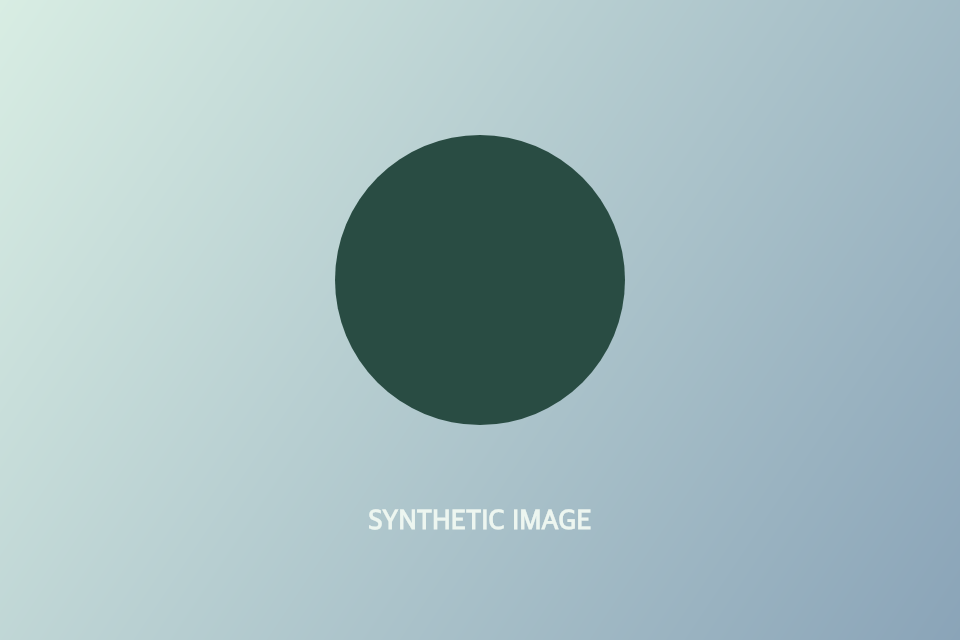
Open the synthetic landscape image, place a square crop around its circle and create a 400 × 400 JPG with a 200 KB maximum. Check the reported bounds and reopen the download: it should be square with the circle intact. This graphic is for practising file settings, not official photo eligibility.
The practice files contain synthetic examples. Their text is in English.
Open the practice guide